How To Search On Google Globally (All Countries) Without Redirecting To Your Country

No Comments
Google have a way of tracking your IP and location just like other top websites like Facebook and the rest does and with this blogger is Abel to come up with the issue of country redirection during Google search results. That's why you notice that each time you search any thing from Google in Nigeria you are redirected to Google.com.ng for your result.

[Image: how-to-do-google-search-without-country-redirection.jpg]

though this could be good sometimes to help us find the related information but at the same time we have to use the global search to know beyond our circle when using Google search .To find top and relevant information's round the whole world..

And sometimes you will like to know how your domain is doing from global search instead of getting on Nigeria results. I do copy some of my posts to search them globally and i see that they rank lower in global search compare to NG search so this is what am trying to tell Using the global search will give you more insight of how other foreign sites are operating and your foreign competitors will be well known as well.


Some of The Google country Redirecting URLs are

United Kingdom IP will redirect you to Google.co.uk
Ghana IP will redirect you to Google.com.gh
Poland IP will redirect you to Google.com.pl
Switzerland IP will redirect you to Google.com.ch
Canada IP will redirect to Google.com.ca
Angola – google.co.ao
Argentina – google.com.ar
Austria – google.com.at
Australia – google.com.au
Belgium – google.com.be
Burkina Faso – google.com.bf
Republic of the Congo – google.com.cg
Ivory Coast – google.com.ci
Cameroon – google.com.cm
China – google.com.cn
France – Google.fr
Japan – google.co.jp
Kenya – google.co.ke
Mexico – google.com.mx
Nigeria – google.com.ng
Germany – Google.de
Sierra Leone – google.com.sl
Senegal – google.com.sn
Somalia – google.com.so
Sรฃo Tomรฉ and Prรญncipe – google.com.st
Chad – google.com.td
Togo – google.com.tg
Tunisia – google.com.tn
Taiwan – google.com.tw
Tanzania – google.co.tz
Zambia – google.co.zm
Zimbabwe – google.co.zw And many more


Now the question is can you stay in your own country while you do Google global search. without redirecting you to your counties search? The answer is yes All you have to do is follow the this link bellow

== http://www.google.com/ncr

The above link which you see is signifying No country(NCR) that means you can now make a search without any country redirection
Hope the above post is helpful start doing global and local searches to see the different results enjoy now and don't forget to share it with your friends!!!!


Copyright


http://clickloaded.com.ng

How to Use Google to Solve Simple & Complicated Mathematics

No Comments

I’m a very lazy students, I love doing things easily without undergoing unnecessary stress. My co-friends called me smart, because I take the easy route most time and come out excellently.

Solve Simple and Complicated Mathematics using Google
Google is my good friend, and the secret of my smartness. For every student to have outstanding results, Google must not be left out since it can direct you to many resources that will help you succeed. Apart from the fact that Google helps to garner the best resources for success, it also possess an inbuilt capabilities that can help with simple and complicated mathematical problems without much ado. It remembered some years back when I was still in high school, my teacher asked us to solve for 50!, I immediately typed it on Google and it brought out the result instantly without using calculator. Click here to verify.
Today, I want to explain how you can easily use your browser and Google to solve for simple and complicated mathematical problems without much ado using Google’s built-in calculator function.

1. Basic Arithmetic

To easily compute mathematical expressions that contains symbols, the following table lists operators that come between the two numbers on which they operate, e.g., to multiply 5 times 6, use 5 * 6.

Operator Function Example
+ Addition [ 20.99 + 50.50 + 17.25 ]
– Subtraction [ 99 – 28 – 39 ]
* Multiplication [ 2 * 3 * 4 ]
/ Division [ 378 / 9 ]
^ or ** Exponentiation (raise to a power of) [ 4^10 ]
or [ 4**10 ]
% of Percent [ 15% of 93.45 ]
mod or % modulo (the remainder after
division)
[ 15 mod 9 ]
or [ 15 % 9 ]
the nth
root of
calculates the nth
root
[ 4th root of 16 ];
[ cube root of 109 ];
[ square root of 42 ] or
[ sqrt(42) ]

2. Advanced Math

To easily compute mathematical problems involving constants such as: e, pi, i (the square root of –1), and mathematical functions. The following table lists some of the functions built into Google’s calculator.

Operator Function Example
sin, cos, tan, sec, csc, cot, etc. Trigonometric functions (arguments
are assumed to be in radians)
[ cos(pi/6) ]; [ cosine(pi/6) ]
arcsin, arccos, arctan, arccsc,
etc.
Inverse trigonometric functions [ arccos(.5) ]
sinh, cosh, tanh, csch, arsinh,
arccsch, etc.
Hyperbolic functions [ cosh(6) ]
ln Logarithm base e [ ln(16) ]
log Logarithm base 10 [ log(16) ]
lg Logarithm base 2 [ lg(16) ]
exp Exponential function [ exp(16) ]
! Factorial [ 5! ]
choose x choose y calculates the number of
ways of choosing a set of y elements from a set of x distinct elements
[ 5 choose 3 ]
Before your proceed, check:
The following table lists just a few of the commonly used mathematical constants known to the calculator function.

Name and description Example
base of the natural system of
logarithms
[ e ]
pi, the ratio of the circumference
to the diameter of a circle
[ pi/6 ]
imaginary number, i, which
represents one of the two square roots of -1
[ i^2 ]
Euler’s constant, gamma [ e^gamma ]

Hope you enjoyed it? You can also share the ones you know via the comment box below.

10 Fantabulous Google Features You Should be Using

No Comments


Google so far has succeeded in relegating many other search engines to the background. They have been so understanding almost making a monopoly of the internet search engine occupation- that we wonder if there is still a daily crumbs for the others, as we all know Google has bitten largely into the loaf of that bread! The features they provide users  are so tasty that they would not even get appetite for others. Let us look at some.
google

1. Atari Breakout

Need some nerves to relax, looking for some buckets of fun? Courtesy of Google, you could enjoy a version of the classic Atari Breakout game on your computer at your convenience. It is stress free- just navigate your way to the Google Image Search page — www.google.com/images — and look for “Atari Breakout.” Then the refreshment starts!
See also: Useful Google Tips and Tricks Every Student Should Know

2. Google definitions

You need no dictionary for a new word’s explanation. Type “define (word)” into the Google search bar, such as “define money” and immediately you have the explanations — it’s “a process of chewing”. Sweet?
Pronunciation options are still available, and you can select the gray arrow for more information, including part of speech or word origins.

3. Google Public Data Explorer

Google’s conventional search site is simply unique for most searches, but Google has more detailed search sites for particular results as well. Taking a clue, the Google Public Data Explorer is a mine full of golden information on public statistics.
Just reach the Google Public Data page and insert your preferred topic. Maintain simplicity in your search like “Unemployment in the U.S.” Google will throw results from sources like the U.S. Bureau of Labor Statistics easily at your desk. You will also enjoy graphs with easy interpretation, and you are allowed to adjust it with preferences like gender, state and age.

4. Google translations

Want to know what words stand for in other languages? Just Go to the popular Google search page inserting in “translate (word) to (language)” in the search bar. Example, you could pick “translate boy to French” .
Within half blink of your eyes, Google would tell you “garcon” is French for boy. It also presents a small speaker icon that make the word audible if you aren’t certain of its pronunciation. Google Translate is a master of longer translations.

5. Google Flight Search

Someone looking for the most suitable cost for flight? Google Flight Search is one of the most welcoming devices to use in price-comparison sites around. You could select your start point and destination from the map, and then select your preferred dates. When you make your date choices, take good note of the prices for every date and Google’s graph of days with the most affordable tickets.
After this, you are allowed to scrutinize the results by airline, price, flight length, stops amongst other parameters. When you reach your preference, you could clinch it by booking directly on the airline’s site.

6. Google Sky

If you think Google Earth is dazzling, then Google Sky is surely going to steal your sanity from you. Here, you could search the solar community and see pictures of stars, planets, and galaxies observed from telescopes, satellites and probes.
It could also display infrared and microwave images just as much as a unforgettable map of the stars designed by Giovanni Maria Cassini in 1792. The site even presents options you could start with if dazzled.

7. Google nutrition comparison search

Which is safer as regards health, an orange or a banana? Type “compare” into Google’s search bar, presenting the food options you want to compare, such as “compare broccoli and asparagus.” Google can handle the remaining duty.

8. Google Conversions. (AT)

You would always need if not necessarily units of measurement for conversion be it at work- or even in church. On the Google search page, type a search like “convert eight ounces to cups” or “convert 10km to mi.” Bingo, there are the results. You could even manipulate the search results further.

9. Google nGrams

Google nGrams is one powerful research device that enable you determine the number of times specific words appear in more than 4 million books written back at 1800 till now. You could put in several words differentiated by commas to compare and contrast two or more words simultaneously. Google allows you to tweak the language of the books, time period, and see at what books the word could be located.

10. Exclude search terms

Google’s algorithms are special at scouring the Internet to locate the information you’re desire. Sometimes, it is demoralizing to get what you didn’t ask for.
Adjust your search employing the minus (-) symbol. Insert it before any words you like to be displayed. Say you want bags but don’t want to know which label designed them, just search bags-labels, and you have it cooked just so.
Can you beat all these?

Important URLs That Every Google User Should Know

No Comments
Here are some 10 web links that lay hid deep inside your Google account dashboard that answers most of the questions posed by most users of Google accounts; Questions like, Which website has access to my Google account? What does Google know about me? Where can I see ads that I’ve clicked on Google search? Where can I get a list of ad that I’ve clicked on Google? What does Google know about the places I’ve visited recently? Where should I go if have forgotten the administrator password for Google? What are my interests as determined by Google? Of course, these are far from being rhetoric questions. These links would show you how much of you Google knows in an interesting depth. Here they are:

1. https://accounts.google.com/SignUpWithoutGmail
With this URL, you can signup to a new Google account without necessarily following the religious protocol of using your @gmail.com as username. You can actually sign up using any email address.

2. https://maps.google.com/locationhistory
Your Android device may be reporting your recent location data and velocity (are you moving and if yes, how fast are you moving) back to Google servers. Head over to the Google Maps website to see your entire location history and you also have the option to export this data as KML files that can be viewed inside Google Earth or even Google Drive.

See: 10 Fantabulous Google Features You Should be Using

3. https://www.google.com/ads/preferences/
Mathematicians can actually calculate your height using the size gotten from your footprints; In like manner, Google actually approximates your personality based on the site you have visited, your Google plus account, and other signals. Google make estimations of your age, gender, etc, and uses these data to serve you better. Use this URL to view how Google estimates you to be.

4. https://security.google.com/settings/security/activity
Given the IP and approximate location, you can check if anyone else had used your Google account. Go to the activity report to see a log of every device that has recently been used to log into your Google account. Unfortunately, you can’t remotely log out of a Google session. But, this URL sure gets you some security to cut down your worries.

5. https://support.google.com/legal
Digital conveniences are at your fingertips, just move them! If you ever find your content appearing on another website that is using one or more Google products – say Blogger, AdSense, Google+ or YouTube – you can raise a DMCA complaint with Google against that site to get that content removed. This wizard can also be used to remove websites from Google search results that are not welcoming to your content.

6. https://www.google.com/takeout
Freedom! Yes, you can download your photos, contacts, videos, Gmail messages out of Google’s territory. All you do is head straight to the Takeout page to download.
See also: How to Use Google to Solve Simple & Complicated Mathematics

7. https://security.google.com/settings/security/permissions
This is a complete list of web apps, browser extensions, Google Scripts and mobile apps that have any read or write access to your Google data. If the permission level says “access to basic account info”, it basically means that you have used your Google account to sign-in to that app.

8. https://www.google.com/settings/account/inactive
Though this does not work for Google apps, it’s a kind of Google reminder to log onto your Gmail account (accounts-perhaps you have multiple) in intervals of a few months. This helps you avoid violating Google’s program policy (because you have to login at least once every 9 months).

9. https://history.google.com
https://history.google.com/history/audio
‘Measurement is for the ease of enquiry’. Google records every search term that you’ve ever typed into their search boxes. They even keep a log of every Google ad that you have clicked on various websites and if you are a Google Now user, you can also see a log of all your audio search queries. OK Google.
10. https://admin.google.com/domain.com/VerifyAdminAccountPasswordReset [*]
Replace domain.com in the above URL with your own web domain name.
‘Once smart, twice smarter’, This URL gives you the ‘twice smarter edge’ against hacking. If ever your account is hacked, this secret link helps you reset your admin password, you would also have to verify your domain name by creating a CNAME record in your DNS.

Whats New In Google - Create Google Account Without Gmail

No Comments


If you had tried to create a new Google account you had seen that when you visit Create New Account Page you realize that they had completely changed the looks of Google account registration form.Now if you register a new account with Google you will automatically get an Google Plus (Google +) account ready for you.So you don't need to do some extra efforts.

Until now creating  a  new Google Account was pretty much simple you could either use your  preexisting email address i.e Yahoo Mail,Hotmail and etc or you could create a new fresh GMail account to be a Google account holder but now Google has upgraded there registration form now What do you think? it is must for you to use GMail if you want to be a Google Account holder.

Discovering Whats New in Google:

Are you thinking Google Account is just for searching? if you are then your getting every thing wrong the biggest reason why Google is the most dominated website is due to its products which are in bulk.Every now and them Google keeps on making some innovation the reason why they are maintaining there top postion in the market.If you owns a Google Account then you could  take some great advantages of Google Products like Blogger , YouTube , Google Sites , Google Talk , GMail , Google Plus , Google Play (Android Market) , Publisher Tools , Webmaster Tools , Store , Chat  ,Picasa , Books , Documents , Google Adsense and the list will keep on going but the benefits of having a Google account would not end.

Why You Require GMail to Use Google Plus

Google has discovered that to increase there Google Plus user they don't required any magical portion they still owns some mighty products to make it big.The reason why when you will create a new account with GMail you would atomically get a Google Plus account.As currently Google has more then 300 Million GMail users this is the reason why I figure it out why they are including Google Plus in GMail to get more audience to Google Plus on every GMail account registration

Create Google Account Without GMail:

Do You Still thinking? Google has disabled Third party Email Address registration in Google Accounts Then you are making a mistake.As I told you previously Google Never remove those things which has some significance among users.You can still use Yahoo Emails , Hotmail Emails and etc to register your account in Google and could take advantages of its products like YouTube , Blogger and etc here is the link to old registration form

Unlike other website Google allow its user to use its products by signing into there Yahoo , MSN , AOL emails which is very much generosity of Google.So having a Google account has some handsome benefits.But if you want to use  Google Plus you will require GMail account.So in your opinion why Google is still turning towards other emails why not promoting GMail.If you are also in doldrums then wait for the next issue.Till then peace blessing and happy registering :)

Websites Without HTTPS (SSL Certificates) to be Flagged by Google Chrome From January 2017

No Comments
Google will start to downgrade HTTP sites on its Chrome browser from January 2017 by marking them out as less secure in a bid to stop people visiting sites run by crooks and scammers.

The move means that legitimate website operators without HTTPS websites need to act. Google has long hinted at such a move so it should not come as a huge surprise.

"To help users browse the web safely, Chrome indicates connection security with an icon in the address bar. Historically, Chrome has not explicitly labelled HTTP connections as non-secure," said Emily Schechter from the Chrome Security team in a blog post.

"Beginning in January 2017 (Chrome 56), we'll mark HTTP sites that transmit passwords or credit cards as non-secure, as part of a long-term plan to mark all HTTP sites as non-secure.
http site to be flag by google chrome


"A substantial portion of web traffic has transitioned to HTTPS so far, and HTTPS use is consistently increasing. We recently hit a milestone with more than half of Chrome desktop page loads now served over HTTPS.

"In addition, since the time we released our HTTPS report in February, 12 more of the top 100 websites have changed their serving default from HTTP to HTTPS."

Google is very keen on this sort of thing, and recently applied the HTTPS padlock sign to Gmail.

"Studies show that users do not perceive the lack of a 'secure' icon as a warning and become blind to warnings that occur too frequently. Our plan to label HTTP sites more clearly and accurately as non-secure will take place in gradual steps, based on increasingly stringent criteria," said Schechter.

"Chrome 56 will label HTTP pages with password or credit card form fields as not secure, given their particularly sensitive nature.

"In following releases, we will continue to extend HTTP warnings, for example, by labelling HTTP pages as ‘not secure' in Incognito mode, where users may have higher expectations of privacy.

"Eventually, we plan to label all HTTP pages as non-secure, and change the HTTP security indicator to the red triangle that we use for broken HTTPS."

Useful google tips and tricks to help improve your search result

No Comments
Its no doubt that google is the world most used search engine because of its simplicity and how it gives relevant required result to its users. you can find almost 90% of anything about life in google search engine because of how everything about how we do and what we do is been uploaded and posted everyday. Many people uses google as their default search engine but only some have the ability to search  and get everything they need and that is what necessitate this post to enlighten those who don't always get what they are looking for in google.

Today i will share some relevant tips and tricks on how you can use google and search everything you need which should either be in form of file  types, serial keys for product software's, get result from a specific site only, compare related site or blog to another, get definitions of everything easily and many more.

Now without wasting much effort and time let's get started

Search within the boundary of a specific site or blog 

Many users want to search a specific file or information on a particular site but as a result of using the wrong keywords, google will be displaying result from other similar related sites. For instance when you want to search information related to education and you prefer result from a specific university then here is how you can do it

site:unimaid.edu.ng release of admission  

Note: site:unimaid.edu.ng denotes that your result will be from this website only and  any word that comes after it or before it is your search words.


With this keywords you can have a result from google about release of admission within the boundary of unimaid website, or for instance  your searching something on the net but you want the result within the boundary of this blog

site:wikiban.blogspot.com free browsing on android
here is the result on google

As you can see all the above result are from this blog likewise for other site that you did.

Search by file type or extension

I think this one is more preferable and suitable for those addicted to downloading of school information and/or assignment in PDF format because with this search tip you can specify which type of file you want in your search result e.g files with this extensions, JPGs, PDFs, PPTs or XLS format. Here is how you can search it

Filetype: [follow by the 3-letter abbreviation before the search keyword]

eg filetype: pdf learn blogging

you will have this result with pdf formats


Likewise for other format that you search

Search useful related site or pages 

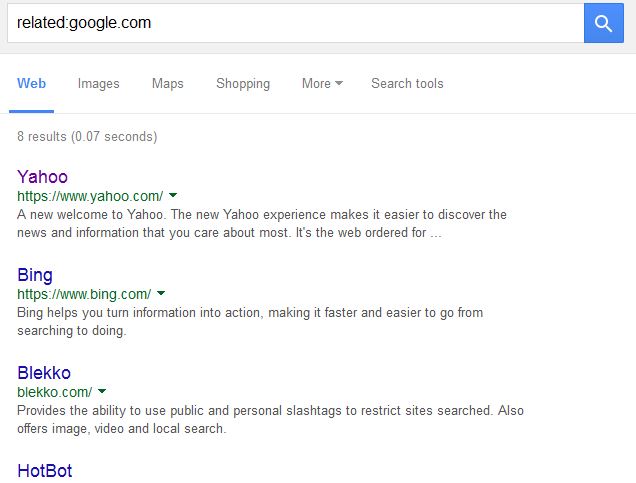
Many sites offer similar content which is related to one and the other, you might be getting important updates from one blog which is used to deliver quality content about news and entertainment but you don't know that there is another blog which is far better than that you already know. Now the question is how can you get similar site or blog which operate in the same niche i.e related pages or site. Let's take google for instance as a search engine, you might want to switch to another search engine apart from google, That's how you are going to  do it:

related:google.com
you can see there is alternative of using yahoo, bing and other, and all the sites displayed at the result are search engine sites.


Search for words and get the definition easily

Applicable to students who are finding definition of some words a little bit tough than as usual, you can be able to get definition of word directly from google search engine without being send from one site to the other. Simply and easily put define: before any word in google search box to get its definition easily
define: marketing 
Remember word not sentence

 Be specific by using web friendly and less words

Some people tend to claim that they don't find what they are searching in google, which i will consider their statement as false because in this generation that we are, you can find almost everything in search engine but how do you search is the problem. Let's take for instance you want to know some clue in solving a mathematics question, you don't have to write all the formula's in google search box rather write the name of the topic and formula which you can have at list a brief explanation of the in problem in question.
When always searching on google don't exceed your keywords to be almost over 70 or more characters in length so that you will have the required result on the spot at the first page.
e.g how to get the best tech blog in nigeria use this instead best tech blog in nigeria or nigeria best tech blog always try to minimise words and go straight to the point.
Sometimes you might want to look at the meaning of a certain phrase but as a result of you not specifying, the search engine can bring some sort of result which you are not in need. Always use quotation mark in searching for a phrase for instance "mark zuckerberg" will present good and direct result than mark zuckerberg

How to search for product and software serial keys easily

You may download a software but don't have the product key and yet when you search google doesn't produce desired result. you can easily use this method  to search for product serial keys at once.

At the google search engine box, type 9FBR at the end of the software or product your searching for the serial, e.g

windows 9FBR
here is the result
 
Feel free to tell us your own tricks and tips via the comment form below
Always don't forget to share

Google New Education Program to Learn Basic Computer Science & Programming

No Comments
   Hey guys, this MTN free browsing tweak with Your-Freedom is currently working on PC but it's too slow in downloading. So if you can endure or do away with the frustrating sluggish download experience, then follow the steps i will drop briefly here.

Your-freedom is an all-in-one VPN tunneling, firewall & proxy bypassing, anonymization and anti-censorship software and it's one of the oldest app/software for free browsing dating back in the days of Symbian OS devices and windows 7 and today it's still working but not in the manner our new VPN apps works that's probably the reason we forgot it easily. So am resurrecting the era of your-freedom free browsing on PC with this tweak here on your MTN line.

REQUIREMENTS
✔ Your MTN line
✔ Your USB Modem
✔ Your Windows PC
✔ Your-freedom credentials
✔ Your-freedom software

PROCEDURES

  • Goto Your-freedom.de with your web browser
  • Register and activate your account with them (if you haven't registered before)
  • Take note of your Username and Password
  • After that, download the latest your-freedom software from their website.
  • Then install it on your PC


HOW TO CONFIGURE YOUR-FREEDOM FOR MTN FREE BROWSING

  • Click On Configure
  • On Your-Freedom Server Address Tab Enter this XML server name = ems02.your-freedom.de or ems19.your-freedom.de
  • Then PORT: 53.
  • Connection Mode Drop Dropdown ,=> DNS => Select TWEAK NIGERIA MTN
  • For Option Select And Tick , 1,3,7,6.
  • After setting up the above, just leave the rest as it is and move on to the next step.


READ ALSO ๐Ÿ“–

✔ Download Cloud VPN App For Free Browsing

Now Input Your Account Registration Info in Account Tab .. Your username and password


After that, click SAVE

That's all for the configuration.

Now it's time to connect your mtn modem using the default connection settings. Do just that and go back to Your freedom and click CONNECT.

Once it's Connected, Configure Your Browser like below:
In Browser Address ::::

  • proxy address 127.0.0.1
  • Port: 8080


NOTE:
I prefer Google Chrome browser for this as it's better than others. My experience though. But all of them are very slow in downloading and fair in browsing.

Now you are good to go. Just enter any site of your choice and start browsing free via your freedom app.

HOW TO BROWSE FREE USING YOUR-FREEDOM ON ANDROID DEVICES WITH ALL NETWORKS
You can browse free not only with your MTN line but other networks like Glo, Etisalat, Airtel and some major networks in Africa with the help of Your-freedom VPN for Android.

The steps and settings are very easy to even a novice in the game. Just follow me along and you would be glad you did. (Smiles)

REQUIREMENTS
✔ Any network line with 0.0kb credit balance
✔ Your freedom vpn - download your freedom vpn apk android app here
✔ Leave your apn default.
Nowadays if you are computer illiterate you are completely loosing it in the technology world and i know many people who are highly influenced either in the academic sector or government parastatals but doesn't have a computer literate knowledge. Technology, precisely computer is taking over the world gradually and in the meantime computer will be everything to anyone and anything in this planet if care is not taking.

Google as the best search engine not only gives you result to your querries but also decided to teach basic computer science and programming in other to build you self and have a good idea of where you are heading to in the tech industry.

Read Also: Tips to Improve your Google Search result easily

You can now learn basic computer education introduced by Google if you are beginner and also to participate in academic career opportunities for the gurus in the field. Don't you think this is a great effort despite the fact that there are many online website which you will learn computer and programming. What you just need is an available internet connection and make your self a computer literate in a short while.
Learn to code easily by visiting there dedicated education site below
Learn computer science by Google

Just go and select the students section to make yourself available at the computer school by Google.

in the upcoming 10-20 years i know everybody will be computer literate and getting connected to each other will be just an easy task using the power of technology.

If you dont want to miss any of our latest update you can subscribe here with your email address or you can follow us on facebook to get the latest updates about tech and more.
 

Sharing is Sexy
YOUR-FREEDOM VPN SERVERS AND HOW TO SET UP

Once you have downloaded the freedom vpn on your android mobile phone, launch it and follow the procedures below...

✔ Click on CONFIGURE at the bottom.
✔ Then click on CONNECTION.
✔ Now after that, in the Freedom server use ems02.your-freedom.de or if you need more stable servers kindly see more below;
ems23.your-freedom.de
ems21.your-freedom.de
ems22.your-freedom.de
ems27.your-freedom.de
ems29.your-freedom.de

Then in Tweaks kindly choose Nigeria MTN .
Then in Connection Mode choose DNS.
Then in PORT insert 53.


Finally, go back and click on START CONNECTION then immediately, it will start reading you can now go and browse as you like. Remember it's slow but i have already provided a solution for the slow speed.

HOW TO INCREASE FREEDOM VPN BROWSING SPEED
If you want to increase the speed of Your-freedom vpn, click Here and see the difference.   - See more at: http://www.wizytechs.com/2016/09/latest-mtn-free-browsing-on-pc-via-your.html#sthash.jmSMiP6c.dpuf